
 Benny Morgan
 Karla Spencer
Key Takeaway: Parental Controls on ChatGPT – Parents can now link their ChatGPT accounts with teens’ accounts to set content filters, usage limits, and receive safety alerts for self-harm concerns in just a few minutes.
What is ChatGPT Parental Control?
ChatGPT Parental Control refers to tools and settings that help families guide how children use AI. These controls support safer conversations and give parents more visibility. I see them as a way to build confidence for anyone who wants clear boundaries without limiting learning.
Parental controls focus on a few key areas:
- Content filtering: These settings reduce the chances of children seeing harmful or inappropriate material. The filters are designed to keep replies age-friendly.
- Usage limits: Parents can set time and feature restrictions. This helps children stay focused and avoid long unsupervised sessions.
- Activity insights: Some versions offer visibility into recent prompts. This helps parents understand patterns in their child’s questions.
- Privacy safeguards: Strong privacy rules protect personal data. Parents can guide children to avoid sharing sensitive details.
Why Parental Controls Matter for Your Teen
Artificial intelligence has become an integral part of teenagers’ daily lives, with many young users turning to ChatGPT for homework help, creative projects, and even emotional support. However, this increased engagement with AI brings significant risks. Studies show that chatbots can sometimes reinforce harmful behaviors, and some teenagers have formed unhealthy emotional attachments to these tools.
OpenAI introduced parental controls in late September 2025 in direct response to lawsuits and regulatory pressure over child safety. These tools empower parents to guide their teens’ AI experiences while maintaining appropriate privacy boundaries. The controls are designed to protect teenagers while still allowing them to benefit from AI’s educational and creative capabilities.
How to Enable ChatGPT Parental Controls
The process of setting up parental controls is straightforward and requires just a few steps. Both you and your teen need active ChatGPT accounts—these are free to create if you don’t already have one.
Step 1: Log into your parent ChatGPT account and click the round profile icon in the bottom left corner.
Step 2: Navigate to Settings > Parental Controls, then select “Add Family Member”.
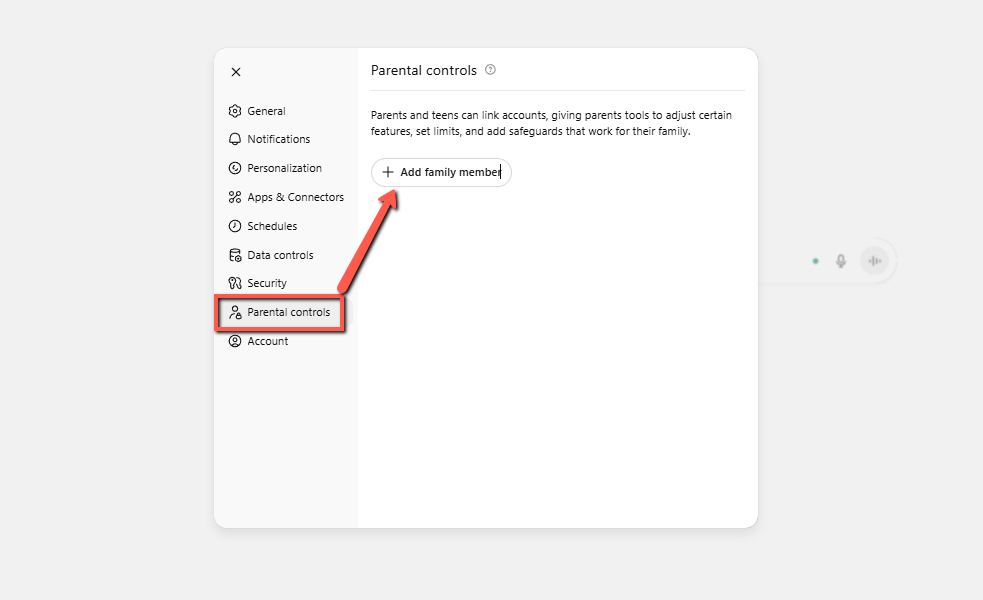
Step 3: Enter your teen’s email address or phone number and confirm that “This person is my child”. This sends an invitation that your teen must accept.
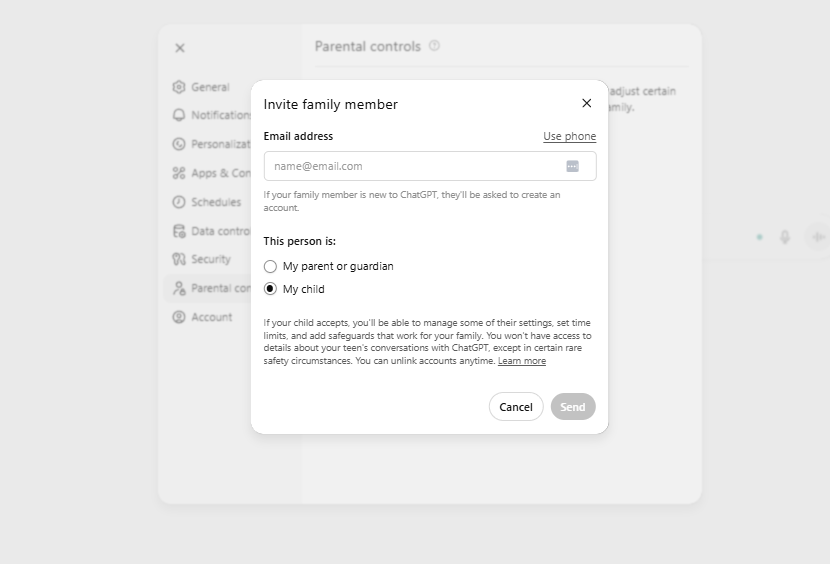
Step 4: Your teen receives the invitation through email or text and accepts it through their own ChatGPT account settings.
Step 5: Once accepted, your teen’s account appears in your Parental Controls dashboard, and you can now customize their settings.
Alternatively, your teen can initiate the connection by sending you an invitation through their own settings, selecting “My parent or guardian”. Either way, both parties must consent for the accounts to link.
Automatic Safety Features That Activate Instantly
The moment you and your teen link accounts, ChatGPT automatically activates enhanced content protections. These safeguards are guided by research on teen development and designed to filter out age-inappropriate material.
Automatic content restrictions include: Your teen’s ChatGPT experience is automatically filtered to reduce graphic content, viral challenges, sexual or violent roleplay scenarios, and extreme beauty ideals. These protections help ensure that ChatGPT’s responses remain age-appropriate and don’t expose teenagers to potentially harmful content that could affect their mental health or body image.
Parents have the option to disable these automatic protections if they choose, but importantly, teens cannot modify these settings themselves—giving parents ultimate control. This design ensures that teenagers cannot bypass safety measures on their own.
Customizable Features You Can Control
Beyond automatic protections, parental controls offer several customizable features that let you tailor ChatGPT to your family’s needs.
Quiet Hours: Set specific times when ChatGPT cannot be used—such as during school hours, late at night, or during family time. This prevents excessive usage and helps protect sleep schedules.
Voice Mode Control: Disable voice input and output features if you prefer your teen to communicate with ChatGPT through text only. This can reduce instances of public or disruptive AI interactions.
Memory Management: Turn off ChatGPT’s memory function so the AI won’t save or recall previous conversations when responding to new queries. This enhances privacy and prevents the AI from building an increasingly personalized profile of your teen.
Image Generation: Remove your teen’s ability to generate or edit images through ChatGPT. This prevents access to image creation tools that could potentially generate inappropriate content.
Model Training Opt-Out: Prevent your teen’s conversations and files from being used to train and improve ChatGPT’s models. This protects your teen’s conversations from being used as training data.
To access these settings, go to Settings > Parental Controls in your account, select your teen’s name, and toggle each feature as desired. These settings remain active until you or your teen manually changes them.
Safety Alerts for Serious Concerns
One of the most important features is ChatGPT’s new notification system designed to protect teenagers experiencing emotional distress. OpenAI emphasizes that this system prioritizes safety while maintaining privacy—parents cannot access their teen’s full conversation history under normal circumstances.
How the alert system works:
ChatGPT’s systems continuously monitor conversations for potential signs that a teenager might be experiencing self-harm thoughts or acute psychological distress. When the system detects concerning language or patterns, a specially trained team of human reviewers examines the conversation.
If reviewers confirm signs of acute distress, OpenAI contacts parents through email, text message, and push notifications on their phones. Importantly, parents receive only the information necessary to support their teen’s safety—not the complete conversation history.
To manage notification preferences: Go to Settings > Parental Controls > Safety Notification, then select “Manage Notifications”. You can choose to receive email alerts, SMS texts, and/or push notifications. You also have the option to receive notifications when ChatGPT processes complex requests from your teen that take extra processing time.
OpenAI acknowledges that “no system is perfect” and may occasionally send alerts even when no genuine danger exists. However, the company believes this approach is preferable to remaining silent when a teenager might need help.
Privacy Balance: What Parents Cannot See
An important aspect of parental controls is the privacy protection they maintain for teenagers. OpenAI designed these tools to prevent the complete monitoring of teen conversations, which child development experts believe is important for maintaining trust and appropriate autonomy.
Parents do not have access to:
Your teen’s full ChatGPT conversation history, chat logs, or the complete content of their interactions with the AI. This privacy protection applies in all normal circumstances.
Parents only receive information when:
Serious safety risks are detected by both ChatGPT’s automated systems and trained human reviewers, and only then do parents receive the limited information necessary to protect the teen’s safety.
Both you and your teen have the ability to unlink accounts at any time, though parents receive notification if their teen initiates an unlink. This mutual unlinking option ensures that teenagers retain some agency while keeping parents informed.
Getting Additional Support
OpenAI has created a dedicated parent resource page that provides comprehensive guidance on how ChatGPT works, detailed explanations of all available parental controls, and conversation starters for families to discuss AI use together. The company commits to regularly updating this resource with new tips, expert advice, and practical strategies as research on teen-AI interactions evolves.
By taking advantage of ChatGPT’s parental controls today, you’re taking an active step to keep your teenager safe while allowing them to benefit from artificial intelligence as an educational and creative tool. The process takes just a few minutes to set up, but the peace of mind and protective safeguards it provides are invaluable.
FAQs
What are parental controls on ChatGPT?
Parental controls help you manage what your child can see or do on ChatGPT. They allow you to set limits, restrict content, and control access based on your comfort level.
Do I need an account to use parental controls?
Yes. You must be signed in to your ChatGPT account to manage parental control settings.
How do I enable parental controls on ChatGPT?
1) Sign in to your ChatGPT account.
2) Go to Settings.
3) Open the Parental Controls or Safety Settings section.
4) Choose the restrictions you want, such as content filters or chat access rules.
5) Save your changes.
How do I unlock parental control on ChatGPT?
If you locked ChatGPT with parental controls and want to unlock it:
1) Sign in to the same account that set the controls.
2) Go to Settings.
3) Open Parental Controls or Safety Settings.
4) Enter the PIN or password if prompted.
5) Turn off or adjust the restrictions.
If you forgot your PIN, you can reset it through your account email.
Do parental controls work across all devices?
Parental controls apply to the account. If your child uses the same account on multiple devices, the settings will follow them.